Managing your watch lists is easy and flexible with SlopeCharts. Some people just keep one list of stocks they like to follow, whereas others like to organize securities into separate lists, moving symbols from place to place to keep them organized.

When you are just starting with SlopeCharts, you will have a watch list automatically made for you called Indexes, which contains popular worldwide index symbols. To create a new watch list, or to import a list of symbols, just click the words Watch Lists at the top, and you will be presented with those two choices at the very top of this menu:
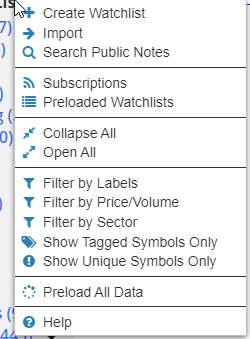
If you choose Create Watchlist, just give it a meaningful name based on the things you intend to store within it, such as “Long Positions”, “Favorite ETFs”, or “Dow Components”. You can add symbols to any list just by clicking the “Add to List” button next to the symbol entry box.
To import a list of symbols (which is just a simple text file of symbols that you can create, or which you exported from another program), choose the Import item. You will be presented with this box, and you can either drag the file into the dialog box, or you can click the upload link to choose the file you want to import. It only takes a moment to import the list, even if it is hundreds of symbols.

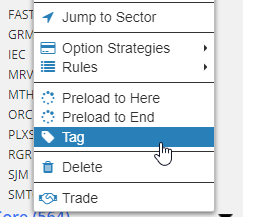
Once you have symbols within the lists, you can drag and drop them from list to list easily. You can also right-click on any symbol to choose what list to move it into, copy it, or delete the symbol from the list. The difference between “move” and “copy” is basic: moving a symbol takes it away from one list and puts it into another list, whereas copying puts a symbol into the destination list and lets it remain in the original list as well.

You can delete any symbol from a list with one mouse click. As you mouse over any symbol, an “X” appears next to it. Clicking the “X” will delete it from the list.

You can also highlight a particular symbol by “tagging” it, which makes it appear in red. You can “untag” any tagged symbols to return it to the original black.
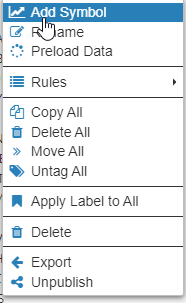
If you right-click on the watch list name itself, you get a different set of choices. With this, you can add the symbol on the chart to this list, move all the symbols, copy all the symbols, rename the list, delete the list, or export all the symbols to a text file.
There are some other choices available on the menu, and you can click on any of the topics below to learn more about them specifically:
Superlists
When Slopecharts was first created many years ago, the foundation of the product was excellent watch list management. This has been taken a step further with the Superlist feature.
Take a situation in which you have multiple portfolios, and you keep your bearish and bullish positions tracked among a variety of appropriately named watch lists. All the symbols are in their various buckets. Until now, there was no way to have a view into the entire “bucket” in which all the symbols could be consolidated. Instead, the symbols were just spread around in small groups.

The Superlist feature solves this problem. To access it, right-click on the Watch List header and choose Create Superlist.

Next, give the Superlist a name to describe it.

Next, check the existing regular watch lists which you would like included in the Superlist. Once you’re satisfied with your choices, click the Create button.

Your Superlist is now ready to use, and all of the symbols in your selected lists will be included within it. More importantly, as the contents of those various lists change, the contents of the Superlist will dynamically change along with them.

Gold and Platinum members get another crucial benefit, which was the basis of creating this feature in the first place: now they have a convenient way to both share and subscribe to superlists.
Because of this, just as one example, they have an instant, consolidated view into all of Tim’s own long and short positions, instead of having to stumble through different “silos” of portfolios with just a few symbols each.

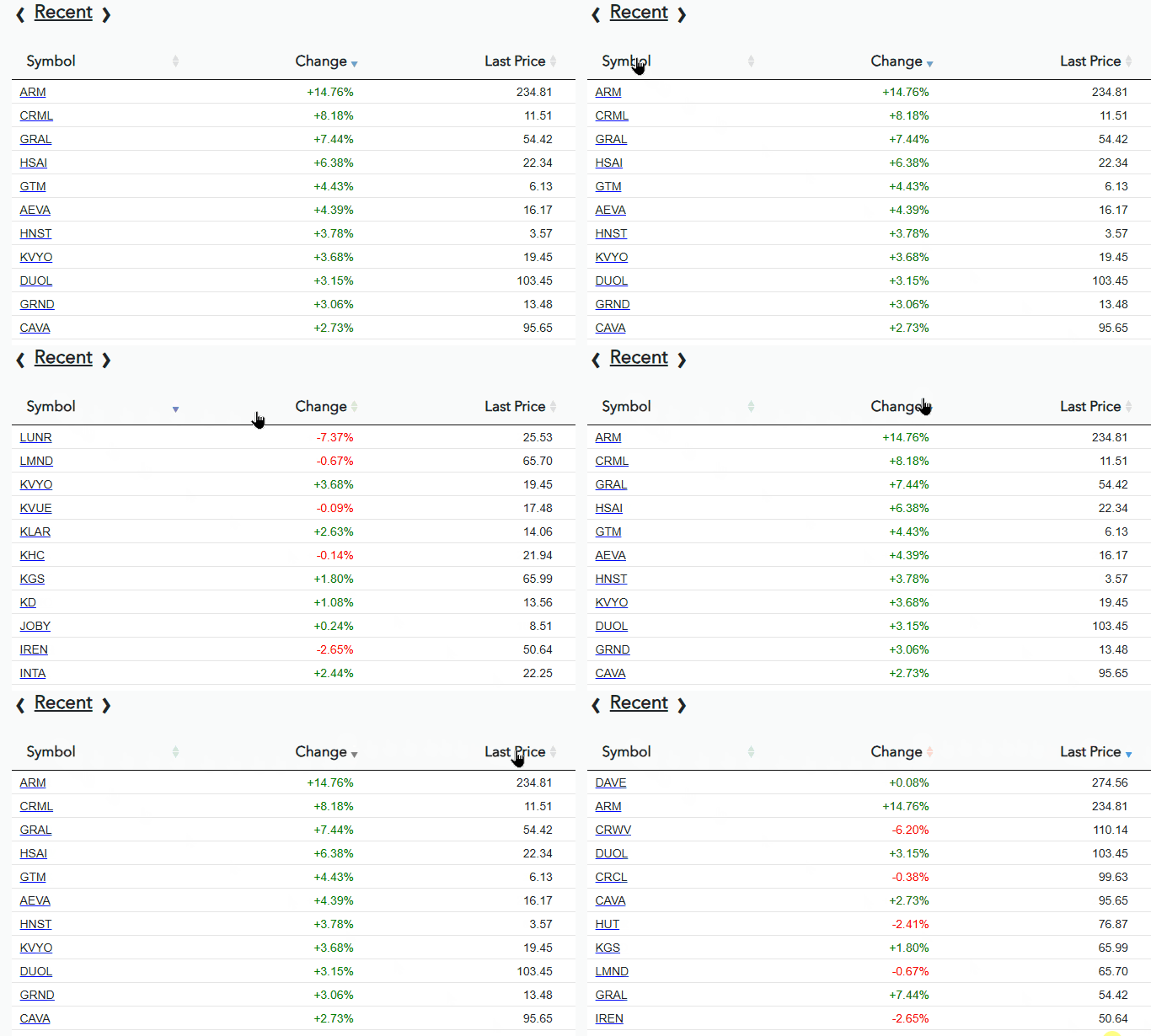
You can also access these watch lists without SlopeCharts by way of this menu in order to get up-to-date quote. Please note that the only quotes displayed will be equity quotes (not futures, indexes, crypto, etc.)
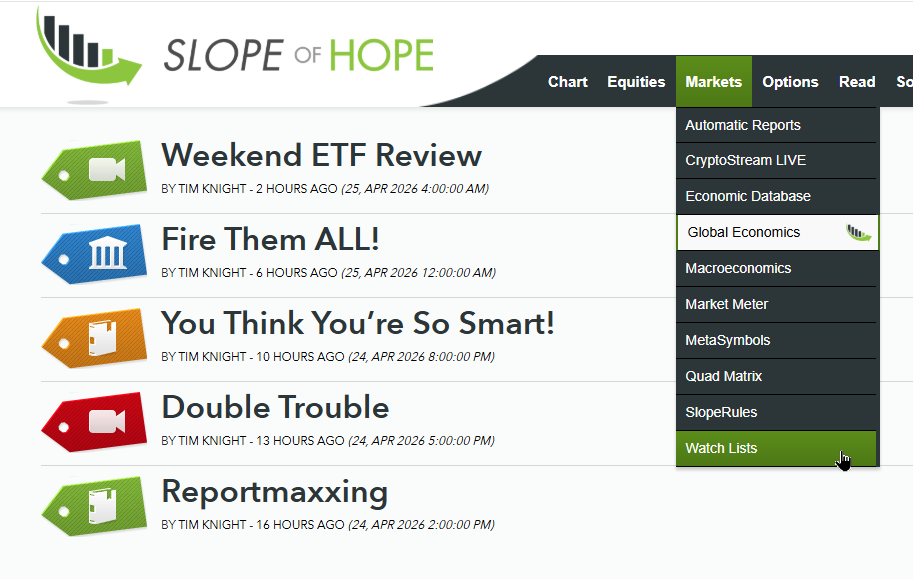
It’s basically what you would expect: all of your watch lists (as created and managed in SlopeCharts) with the most recent price data and percentage change.
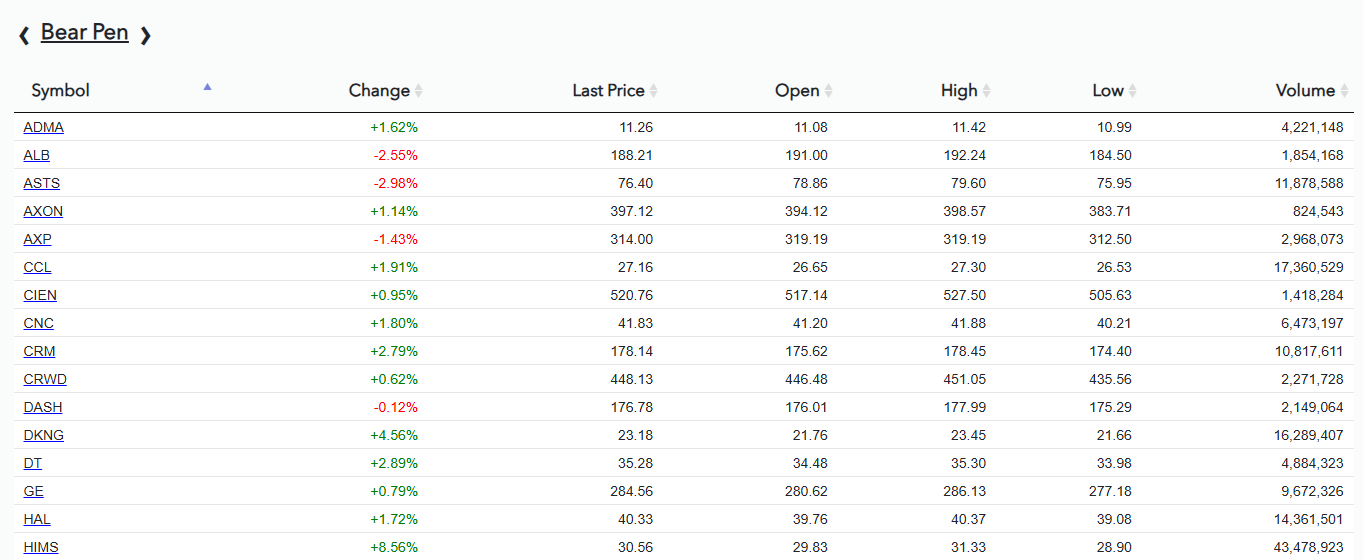
You can move from list to list by clicking on the right or left arrows next to the list name.
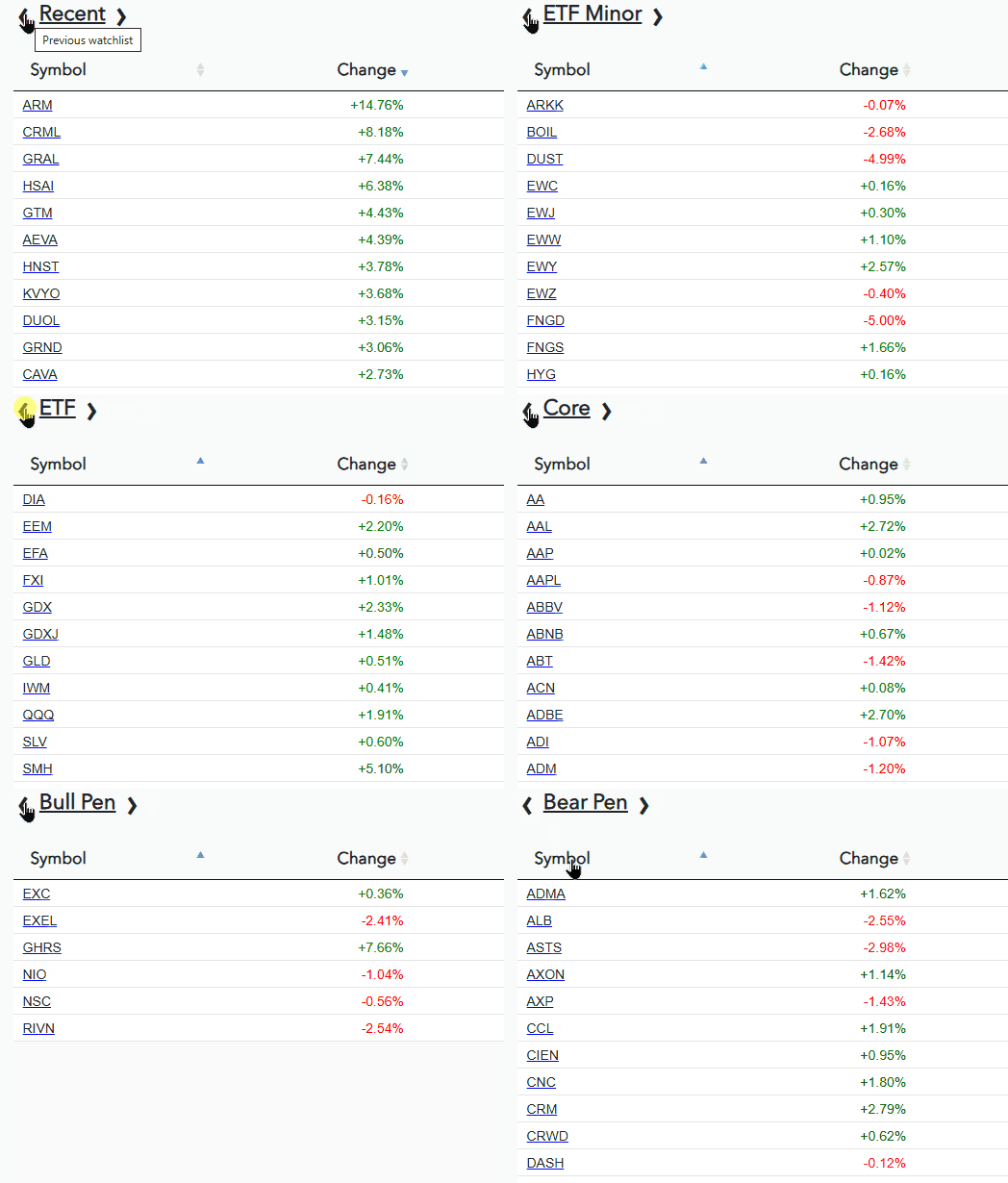
You can also toggle the sort by clicking on any column header.