


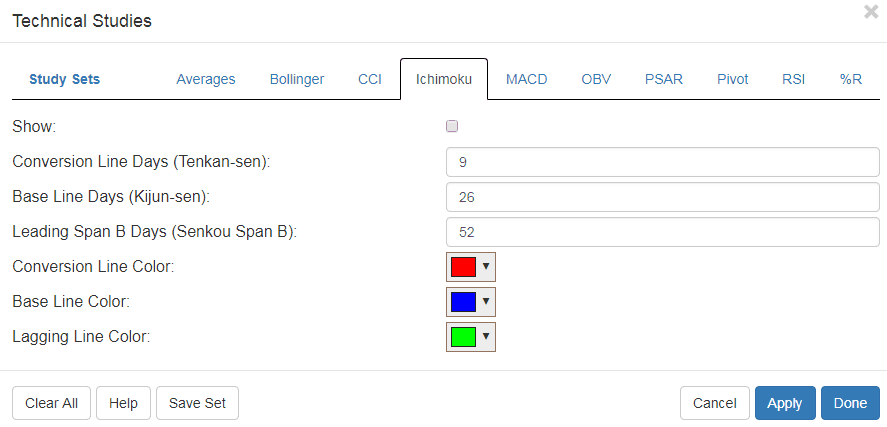
SlopeCharts users may be pleased to hear we’ve added a new study, the Ichimoku Cloud. To get to it, just go to the Studies menu and click “Choose”, and the Technical Studies dialog box will appear. There is a new tab there now:
Slope of Hope Blog Posts
Slope initially began as a blog, so this is where most of the website’s content resides. Here we have tens of thousands of posts dating back over a decade. These are listed in reverse chronological order. Click on any category icon below to see posts tagged with that particular subject, or click on a word in the category cloud on the right side of the screen for more specific choices.
Mutual Funds Now LIVE!
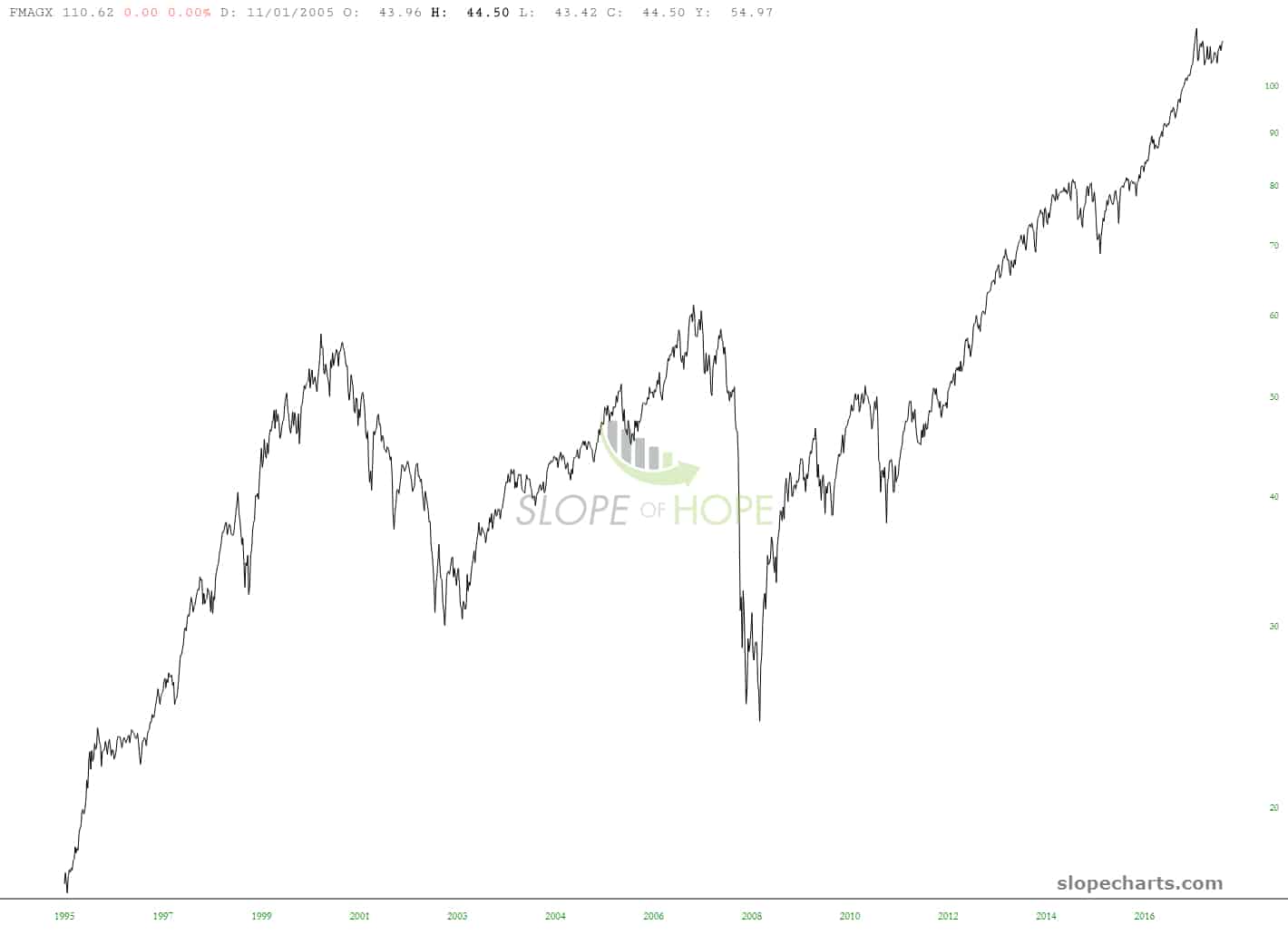
Not a week goes by without one or two new SlopeCharts features. The latest is that we now offer full mutual fund graphs. Just punch in your symbol, and bang, there’s your line chart. Here’s an example:
Intraday Crypto
As you have hopefully surmised, we are piling on more and more data sets and feature types into SlopeCharts. The latest is intraday data for crypto-currencies.
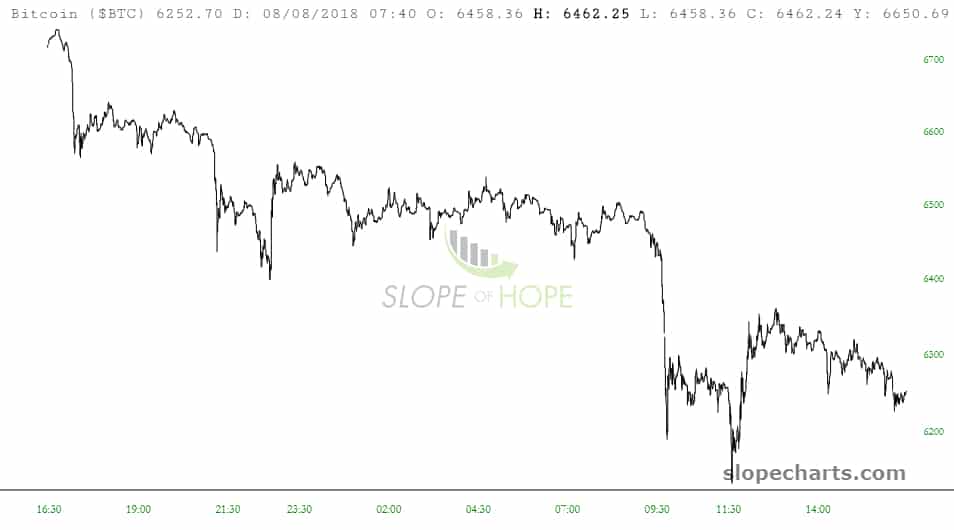
You use it just like anything else: enter the symbol (like $BTC for Bitcoin) and choose the granularity you want from the dropdown (such as “1” for 1 minute bars). Here are some examples I just pulled:
FOREX Charts Now LIVE!
Yes, it’s another major improvement for SlopeCharts, and it’s live and ready to use by everyone.
SlopeCharts gives you the ability to create a chart of any currency compared to any other currency. This is far more flexible than most other systems, which limit you to a handful of popular foreign exchange rates. With SlopeCharts, you simply choose whichever two currencies you want from 156 different choices, which means that tens of thousands of different charts are possible.
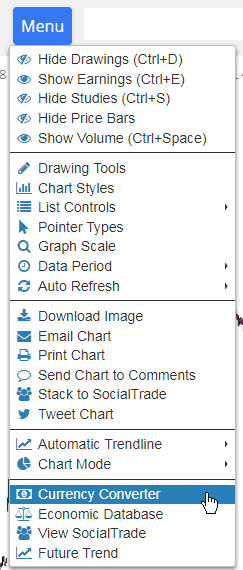
Using this function is quick and easy. First, choose the Currency Converter from the menu:
Color Volume Bars
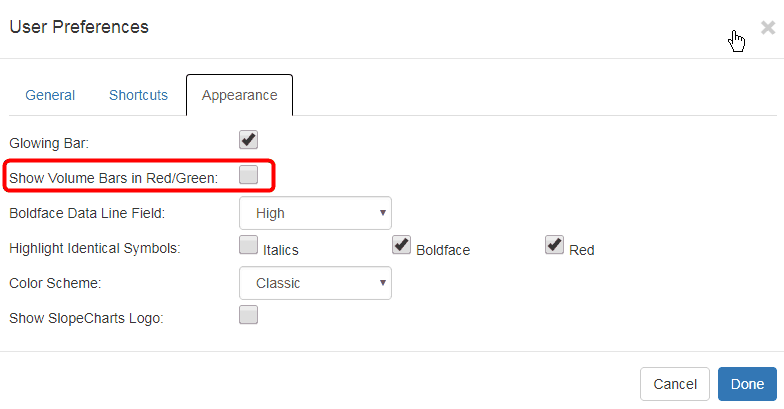
SlopeCharts is on a ceaseless pathway of improvement. Today’s new feature is color volume bars, which has been an oft-requested upgrade. You can find the toggle for this over in the Preferences dialog (the gear icon on the extreme right of the tools).