
Slope of Hope Blog Posts

Slope initially began as a blog, so this is where most of the website’s content resides. Here we have tens of thousands of posts dating back over a decade. These are listed in reverse chronological order. Click on any category icon below to see posts tagged with that particular subject, or click on a word in the category cloud on the right side of the screen for more specific choices.

SlopeCharts…….But

By -

I’ll once again state a theme I’ve embraced, which is Quality instead of Gizmos (Don’t worry, gizmo fans, there will come a day when I go back to that). Thus, any product announcements I make will be more along the lines of “this no longer sucks” as opposed to “Wow, look what I just did!” This is one such post.

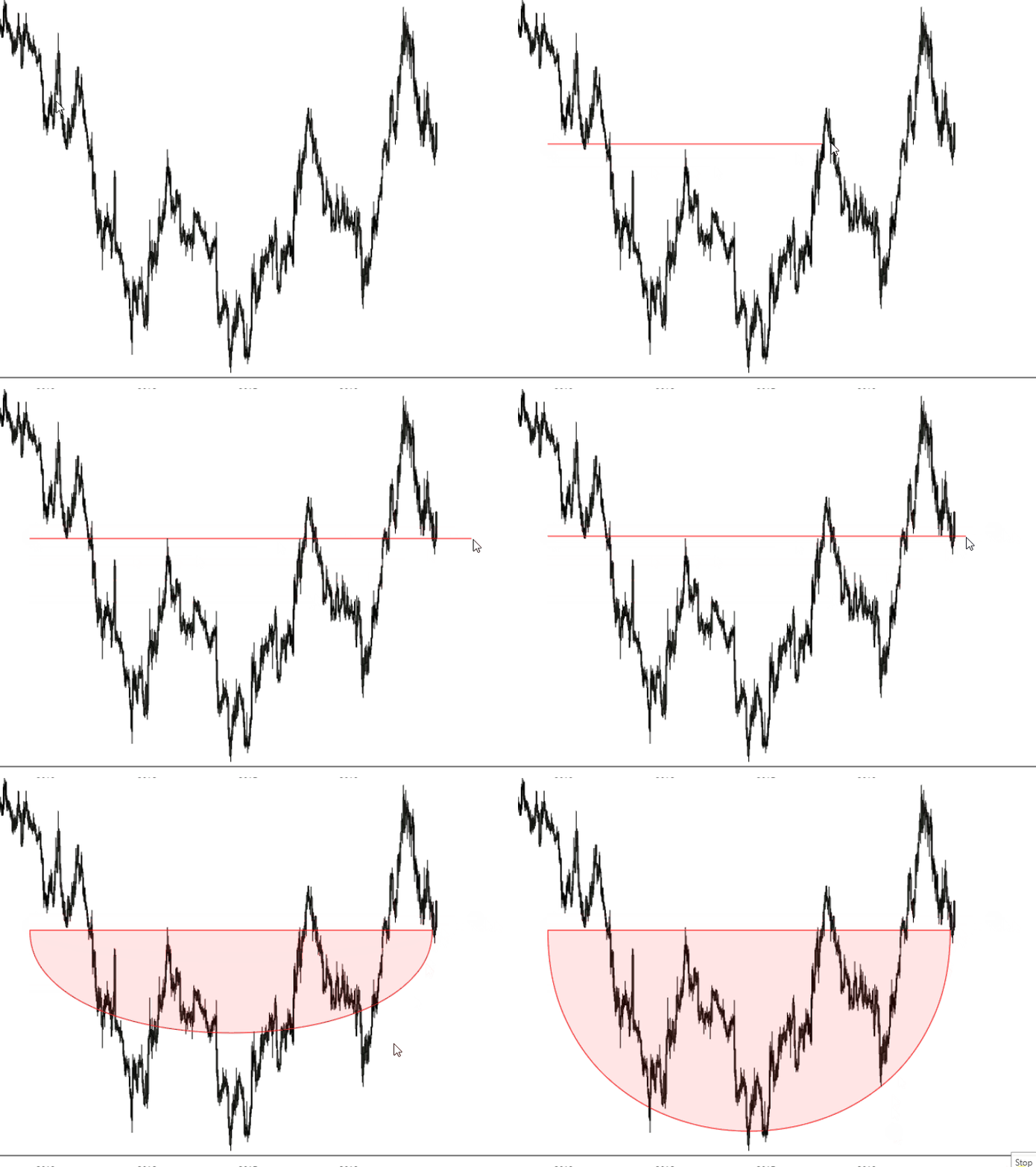
One thing that has bothered me forever in SlopeCharts is how, when drawing an object, I couldn’t anchor it into the future. This is easier shown than described, so here’s what I am talking about. Take a few moments to watch:
drawing
(more…)

Pop-Ups!

By -

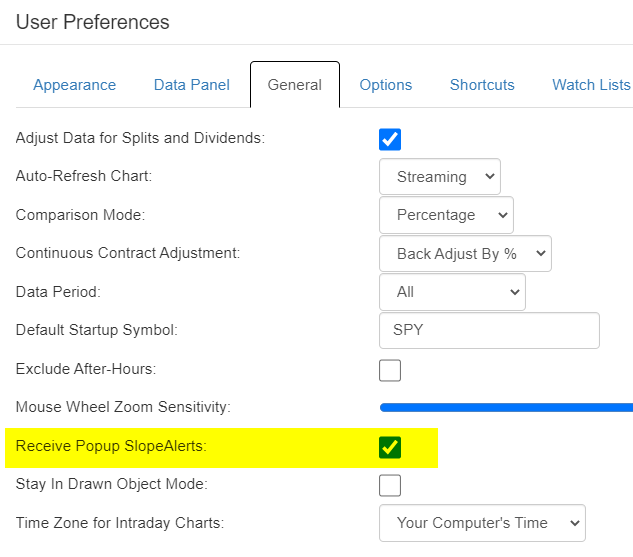
One of the most popular new products on Slope lately has been SlopeAlerts, and with good reason. It provides a nearly real-time mechanism for getting notifications about stocks and crypto prices, including chart-based alerts. We have provided three different ways to get notices – – email, SMS text, or Telegram – – and now we’ve added a “bonus” method, which is accessible via this choice in SlopeCharts preferences:

receivePop
(more…)

Filter the Smoke

By -

We just added the ability to filter by options availability, so here is a recap of the filter features in SlopeCharts.

If you want to limit the symbols displayed in your watch lists or your sectors list, you can do so easily with the Filters menu items. The data panel, on the left side of SlopeCharts, can show many kinds of information, but the two panels in which Apply Filters is present are Watch Lists and Sectors.

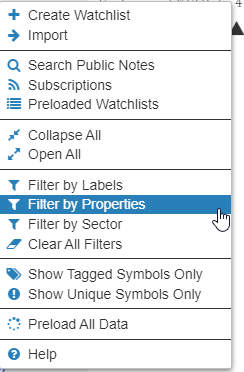
Click on the panel title at the top to invoke the menu. You have a choice of Filter by Labels (which is related to the Labeling feature), by Sector (related to the Sector feature), or by Properties. You can also wipe out every single filter being used by choosing the Clear All Filters menu item.

filtermenu
(more…)